How AI Gender Swap Works: Photos, Steps & Tips
An AI gender swap creates a new version of a portrait with a more masculine or feminine appearance. It can change hair and facial details while trying to keep the person recognizable. A good source photo helps, but the result is still a generated interpretation. Here is what happens to your image, how to use the editor, and what to check afterward.
What does an AI gender swap actually change?
In Gendora, your uploaded image and the chosen direction are sent to an image-editing model. The instruction asks for a natural change in appearance while preserving recognizable features, age, skin tone, eye color, expression, head pose, clothing, background, and lighting.
That instruction is a goal, not a guarantee. The model may redraw hair, skin texture, facial hair, or the outline of the face. It can also alter an earring or a collar that you wanted to keep. Unlike copying another person's face onto a photo, this workflow generates a variation of the person already pictured. It does not predict someone's real appearance after a transition or determine their gender identity.
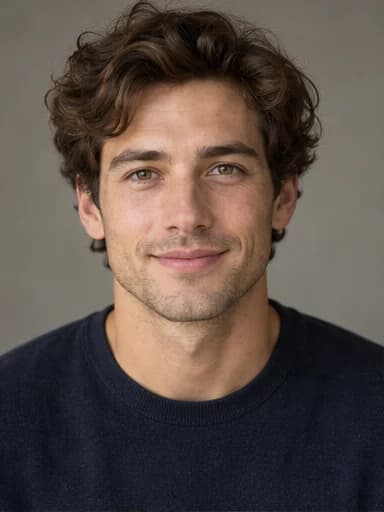 Source example
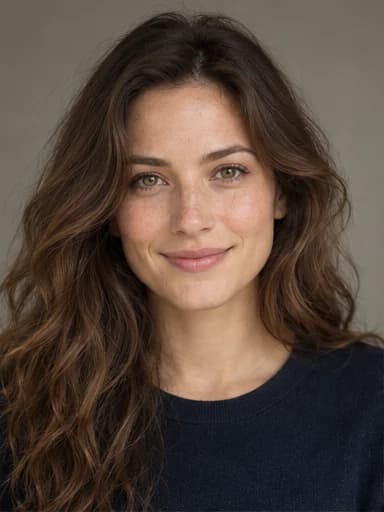 Edited example
Choose a photo that gives the model useful detail
A clear, evenly lit portrait makes it easier to judge what changed. A full-body photo may work, but a distant face has fewer visible details. For your first edit, choose one adult facing the camera or turned slightly to the side.
- Use the original file when possible. Avoid tiny screenshots and photos repeatedly compressed by messaging apps.
- Keep eyes, eyebrows, nose, and mouth visible. Sunglasses, a hand over the face, and heavy shadows hide useful detail.
- Leave room around the hair and chin. An extremely tight crop may cut off areas that need editing.
- Choose one person per image. There is no person selector for choosing a face in a group.
- Upload JPG, PNG, or WebP within the current 10 MB limit. Convert unsupported formats before uploading.
How to create a gender swap photo in Gendora
Keep a copy of your source image so you can compare it with the download. The editor works with uploaded still photos in your browser; you do not need to install an app.
- Open the editor on the home page and upload your photo. Check the preview before continuing.
- Choose Male → Female or Female → Male for an explicit direction. Auto asks the model to choose the opposite masculine or feminine presentation from the photo; choose a direction yourself if the intended result matters.
- Start the edit and keep the page open while it uploads and processes. The wait includes upload, queueing, generation, and fetching the result, so it can vary.
- Inspect the completed image, then use Download Result to save it. Check the actual downloaded file rather than judging only the preview.
Review the result beyond the hairstyle
A dramatic change is easy to notice; a convincing edit also needs consistent details. Compare the original and result side by side at the same display size, then zoom in. Look at both sides of the face, especially around glasses and strands of hair.
| Area | What to inspect |
|---|---|
| Recognizable features | Eye spacing, nose shape, expression, skin tone, and apparent age still feel consistent with the source. |
| Edges and accessories | Hairline, ears, glasses, and earrings do not blend into the skin or background. |
| Clothing and scene | Collar, jewelry, hands, background objects, and lighting have not changed unexpectedly. |
| Saved file | The download opens correctly and has enough detail at the size you intend to use. |
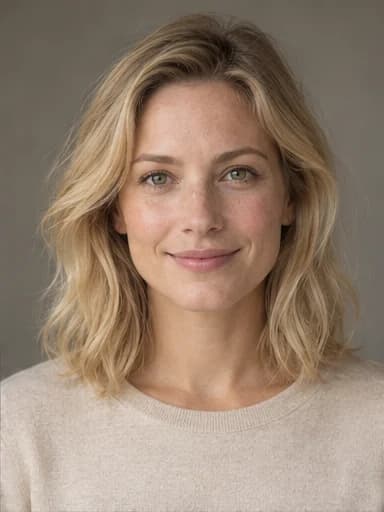 Source example
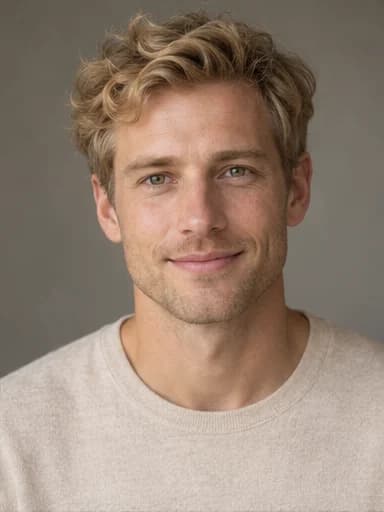 Edited example
What to do when the edit looks wrong
If the result looks like a different person, try a clearer portrait with less extreme lighting. If the hair or jaw has a rough edge, leave more space around the head in your crop. When a group photo changes the wrong face, crop it to one person with their permission before editing.
Change one thing at a time so you can tell what helped. The current editor has no strength slider, manual face mask, or person selector, and it chooses output dimensions automatically. A new generation can differ even with the same photo. Repeated edits may use more credits, so check the source image before trying again.
Costs, privacy, and sharing
Gendora offers a limited guest trial and asks the model not to add a watermark. More edits can require an account or a paid plan. Check the current plans instead of assuming that a free trial means unlimited use.
Browser access does not mean local processing. Your photo is sent to storage and AI service providers to create the edit. Read the privacy policy before uploading sensitive images, and use a photo of yourself or an adult who has agreed to the edit. When sharing a result, describe it as AI-edited so people understand what they are seeing.
Frequently asked questions
Can I use a selfie or a full-body photo?
Yes. A selfie with a visible, well-lit face is a useful starting point. Full-body photos can be uploaded too, but a small face gives the model less detail and makes the result harder to assess.
Is AI gender swap the same as face swap?
In this editor, no second person's face is supplied. The model changes the appearance of the person in your photo. Face-swap workflows typically use another face as a replacement or reference.
Will it keep my clothes and background?
The editing instruction asks it to preserve both, but generative edits can introduce changes. Inspect clothing, accessories, and the scene before saving or sharing.
Can the filter tell me what I would really look like?
It offers a creative interpretation of appearance, not a reliable prediction of real physical changes or a statement about identity.