Free AI Gender Swap Apps: A Practical Comparison Guide
The best gender swap app for you depends on what you want to make: a quick camera effect, a saved portrait, or a carefully controlled edit. This guide compares those workflows and gives you a practical way to evaluate free offers. It is a buying checklist from the Gendora team, not a ranked test of competing apps.
Start with the workflow, not the app ranking
An instant effect is convenient when you want to see a transformation on camera. A saved-photo editor is more useful when you already have a portrait and want to download a new version. A workflow with manual controls may suit you better if you need to protect a specific area of the image. Features vary by product, so verify the exact mode before registering.
| Workflow | Useful when you want | Check before choosing |
|---|---|---|
| Live camera effect | An immediate preview or a social clip | Whether it saves stills or video, and whether the desired effect is available. |
| Uploaded-photo editor | A new version of a photo you already own | Supported files, identity consistency, download size, and credit limits. |
| Editing with manual controls | More control over which areas change | Whether masks, strength adjustments, or person selection are actually included. |
What does “free” let you finish?
Follow the whole path from upload to a usable download. A free preview is less useful if you cannot save it at the size you need. Separate a one-time guest allowance from recurring free credits, and distinguish both from a subscription trial.
- Can you try the editor before creating an account?
- How many edits are included, and does another attempt use more credits?
- Is the download included, or is only the preview free?
- Does the saved image have a watermark or a reduced size?
- If payment details are required, when does billing start and how can you cancel?
Compare your own photos under the same conditions
Use the same permitted source file and the same direction in each tool. Start with an evenly lit portrait; if you also need full-body edits, include a second image with that composition. Keep a simple note of what you uploaded and which settings you chose so you do not compare different inputs by accident.
Check recognizability, expression, age, hair edges, skin texture, and changes outside the face. Compare the downloaded files at the same size. A polished gallery can help you understand a style, but it cannot show how a tool will handle your particular photo.
 Source example
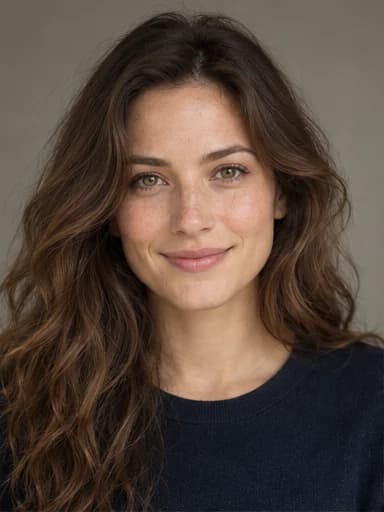 Edited example
Use this comparison checklist
Fill in one row per tool using a real trial. Record a concrete observation such as “glasses stayed intact” or “collar changed,” rather than awarding an unsupported accuracy percentage.
| Criterion | What to record | Why it matters |
|---|---|---|
| Free allowance | Guest access, credits, registration, download access | Shows whether you can complete your intended edit before paying. |
| Appearance consistency | Expression, eye details, age, and skin tone | A striking transformation can still lose familiar features. |
| Unwanted edits | Hair edges, accessories, clothing, background | Reveals the cleanup you may need after generation. |
| Controls | Directions, Auto, masks, strength, face selection | Prevents paying for a control the tool does not offer. |
| Output | Actual dimensions, file type, watermark | A preview may hide limits in the saved image. |
| Time and data | Upload-to-download time and relevant privacy terms | Helps judge the full workflow rather than generation alone. |
Where Gendora fits in the comparison
Gendora is a browser editor for an uploaded still photo of one adult. It offers Male → Female, Female → Male, and Auto. The edit instruction aims to keep the person recognizable and preserve clothing, background, and lighting while changing masculine or feminine appearance.
Supported inputs are JPG, PNG, and WebP up to 10 MB. Output dimensions are selected automatically. There is no strength slider, manual mask, group-photo person selector, or live video mode in the current editor.
A limited guest trial lets you try it without installing an app. The model is instructed not to add a watermark; additional edits may require an account or paid credits. Those features make it worth considering for a straightforward saved portrait. If you need live video or precise local retouching, check for a workflow that includes those controls.
Check photo handling before uploading
Ask where the photo goes, how long it is kept, which providers process it, and what the policy says about training use. Do not assume that an app-store listing or browser interface answers those questions. Read the terms for the specific service you intend to use.
Gendora sends photos to storage and AI service providers for processing. Review its privacy policy before uploading. For an initial comparison, use a non-sensitive adult portrait that you own or have permission to edit, and avoid photos containing private documents or other people's faces in the background.
Choose based on a finished download
Pick the tool that gives you a usable result with acceptable cost, effort, and data handling. If two tools look similar, compare a second photo that resembles your intended use rather than repeating the same easy example. Save your source, result, and notes together so your choice is based on evidence you can review.
A single result cannot establish that an app is best for every face. For occasional fun, ease of use may matter most. For a profile image or a creative project, consistent features and a clean download may be the deciding factors. Always label AI edits appropriately when you share them.
Frequently asked questions
Which free gender swap app is best?
There is no universal winner. Compare the tools that support your workflow using the same photo, then check the actual download, free limits, and privacy terms. This guide does not claim an independent ranking.
Can I use Gendora without signing up?
A limited guest trial is available. After the trial credits are used, an account or paid plan may be needed for more edits. Check current availability and pricing in the editor.
Does a website process the photo on my device?
Not necessarily. A browser editor can upload images to remote services. Gendora uses storage and AI providers to generate the result; consult the privacy policy for details.
What should I check before paying?
Complete a trial download if available. Check recognizable features, unwanted scene changes, output dimensions, watermark status, credit costs, and any subscription renewal or cancellation terms.